
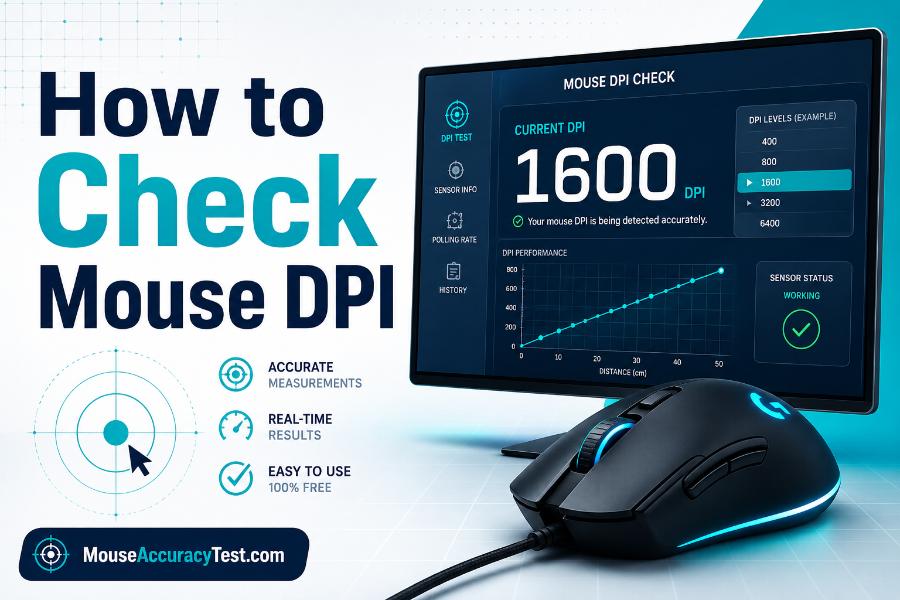
Knowing how to check mouse DPI helps you understand why the pointer or in-game crosshair feels fast, slow, or inconsistent. DPI stands for dots per inch and describes how many counts a mouse sensor reports when the mouse moves one physical inch. A setting of 800 DPI generally means the sensor reports about 800 counts across that inch, although real-world measurements can vary slightly by device and surface.
Windows and macOS do not normally display the hardware DPI value for every mouse. The most reliable method is usually the manufacturer’s configuration software. When that is unavailable, you can inspect the mouse’s presets, use a calibrated browser test, or estimate DPI through manual measurement. This guide explains each option, what the result means, and how to avoid common measurement errors.
DPI, CPI, Pointer Speed, and Sensitivity
DPI and CPI are often used interchangeably in mouse marketing. Technically, counts per inch is a more direct description of sensor output, while dots per inch comes from printing terminology. For practical mouse setup, both labels usually refer to the same adjustable sensitivity value.
Hardware DPI is different from operating-system pointer speed and in-game sensitivity. DPI controls how many counts the mouse sends. Pointer speed changes how the operating system converts those counts into cursor movement. In-game sensitivity changes how the game converts the input into camera rotation. A pointer can therefore feel fast at 800 DPI if Windows pointer speed or game sensitivity is high, and it can feel slow at 1600 DPI if software sensitivity is low.
When checking DPI, keep these layers separate. Your goal is to identify the hardware setting first. Then record the operating-system and game settings so you can recreate the complete feel later.
Method 1: Use the Mouse Manufacturer’s Software
The easiest and most accurate way to check mouse DPI is to open the official software for the mouse. Gaming brands commonly provide a utility that shows active DPI stages, button assignments, polling rate, lighting, profiles, and onboard-memory settings. Download the software from the manufacturer’s official support page rather than an unknown download site.
Connect the mouse, open the utility, and select the device. Look for a section named Sensitivity, DPI, Performance, Sensor, or Pointer Settings. The screen may display one active value or several stages such as 400, 800, 1600, and 3200 DPI. A highlighted stage is usually the current setting. Some mice use separate horizontal and vertical values, so confirm that both axes are linked unless you intentionally want different behavior.
Save the profile to onboard memory when the mouse supports it. Otherwise, the selected value may depend on the software running in the background. Take a screenshot or write down the DPI, polling rate, and active profile name. This creates a reliable record for troubleshooting or moving to another computer.
Method 2: Identify the DPI Button and Preset Stages
Many mice include a button near or behind the scroll wheel that cycles through DPI presets. Pressing it may change an LED color, show an on-screen notification, or change pointer speed. The exact values are not universal. One mouse might cycle through 400, 800, 1600, and 3200 DPI, while another uses completely different stages.
Check the printed manual, product support page, box, or official software to identify the preset values and color meanings. If the device has two DPI buttons, one may increase and the other may decrease the stage. A dedicated sniper or precision button can temporarily lower DPI only while the button is held.
Without a manual or software, the button confirms only that the setting changed; it does not reveal the exact value. You can combine this method with manual measurement. Test each stage separately and record the approximate result so you know which button press corresponds to the DPI you prefer.
Method 3: Use an Online DPI Analyzer
A browser-based DPI analyzer estimates DPI by comparing physical mouse movement with the distance reported on screen. For a useful result, you need a ruler or measuring tape and an accurate screen scale. The tool may ask for the distance you plan to move, the current browser zoom, and sometimes the screen’s pixel density.
Set browser zoom to 100 percent and avoid changing Windows display scaling during the test. Turn off pointer acceleration where possible, set Windows pointer speed to the neutral position, and make sure the tool is measuring raw or predictable movement. Place the mouse at a marked starting point, press and hold the tool’s target, move the mouse exactly the chosen physical distance, and release.
Repeat the test at least three times in both directions. Small differences are normal because it is difficult to move exactly one or two inches by hand. Use a longer measurement distance, such as five or ten inches, when desk space allows. Longer distances reduce the effect of a tiny starting or stopping error. The average result is more useful than a single attempt.
Method 4: Estimate DPI Manually with a Ruler
You can estimate DPI without specialized software by measuring physical movement and comparing it with cursor movement. This method is less convenient but useful for generic office mice or older devices with no supported utility.
First, prepare a clear horizontal path on the mouse pad and place a ruler beside it. Set the operating-system pointer speed to its neutral position and disable acceleration. Use a screen tool that reports horizontal pixel movement, or create a simple canvas where you can compare the cursor’s starting and ending coordinates. Move the mouse a measured distance in a straight line without lifting it.
DPI is estimated by dividing the number of counts or pixels moved by the physical distance in inches, provided the software path is one-to-one. If the cursor moves 4000 pixels while the mouse travels five inches, the estimate is 800 DPI. Repeat the test and average the results. If operating-system scaling, acceleration, or application zoom affects the movement, the number will not represent true hardware DPI.
How to Check DPI on Windows
Windows does not provide a universal field labeled Mouse DPI. Open Settings, go to Bluetooth & devices, and select Mouse to review pointer speed and related options. This speed control is not the hardware DPI value. For more detailed legacy options, open Additional mouse settings and inspect the Pointer Options tab.
For measurement, use the neutral Windows pointer-speed position and clear Enhance pointer precision. This helps create a predictable relationship for many traditional cursor tests. Games that use raw input may ignore these settings, but a browser measurement usually passes through the operating system.
Next, open the manufacturer’s app or perform a calibrated test. If you use several Windows profiles, confirm that the active device profile is the one you expect. Some utilities switch profiles automatically when a game launches, which can make the desktop value differ from the in-game value.
How to Check DPI on macOS
macOS also does not normally reveal the mouse’s hardware DPI. System Settings lets you change tracking speed, but tracking speed is a software multiplier rather than the sensor’s DPI value. The best option is official manufacturer software when a macOS version is available.
If the manufacturer does not support macOS, store the desired DPI in the mouse’s onboard memory from a Windows computer if the device allows it. You can then reconnect the mouse to the Mac and keep the hardware stage. Another option is a browser measurement, although macOS acceleration and tracking behavior can make a simple cursor-based estimate less direct.
For gaming, check whether the game uses raw input and record both the mouse DPI and the in-game sensitivity. Third-party utilities can alter acceleration or tracking, so disable them temporarily when measuring unless you are intentionally documenting the complete configured feel.
Check DPI Without Installing Software
When you cannot install an app on a work, school, or shared computer, start with the mouse’s manual and model number. Search the official product page on another device and note the default DPI stages. Many basic mice use one fixed sensor value, while gaming mice offer several presets through a hardware button.
If the mouse has onboard indicators, cycle to the known stage. If no indicator exists, use a web-based measurement with a ruler. Keep the same operating-system settings for every attempt. Record an approximate range rather than claiming exact precision. A result around 790 to 820 DPI usually indicates an intended 800 DPI stage.
You can also compare the physical distance required for a full in-game rotation if the game and sensitivity are known. This is usually expressed as centimeters per 360-degree turn. It does not directly display DPI, but it can help determine whether the current combination matches a previously recorded setup.
Why Your Measured DPI May Be Different
Measured DPI is often slightly higher or lower than the selected value. Sensors and manufacturing tolerances can produce DPI deviation. A mouse set to 800 DPI might measure somewhat above or below 800. This is not necessarily a defect, especially when the difference is small and consistent.
Large differences usually come from testing conditions. Browser zoom, display scaling, pointer acceleration, a non-neutral pointer-speed setting, an inaccurate ruler movement, lifting the mouse, or moving at an angle can change the result. Surface quality can also affect sensor tracking. Reflective glass, uneven fabric, dust, or moisture may cause skipped or irregular counts.
Automatic profile switching is another frequent cause. A mouse may use 800 DPI on the desktop and 1600 DPI in a game profile. Check the active profile and onboard memory before assuming the sensor is inconsistent.
How to Record and Compare Your Mouse Settings
Create a small settings note for each game. Record mouse model, DPI, polling rate, operating-system pointer speed, acceleration status, in-game sensitivity, scoped sensitivity, resolution, aspect ratio, and field of view. These details make it easier to restore the same setup after reinstalling software or changing computers.
For cross-game comparison, use a trusted sensitivity converter or measure physical distance per 360-degree turn. The same eDPI number does not produce the same rotation in every game because sensitivity scales differ. Centimeters per 360 provides a physical reference, although field of view and aim behavior can still make two games feel different.
Change only one variable at a time. If you alter DPI and in-game sensitivity together, calculate the new combination so the effective sensitivity remains constant when that is your goal. For example, doubling DPI while halving in-game sensitivity often preserves a similar turn distance within the same game.
Troubleshooting: The DPI Keeps Changing
If DPI changes unexpectedly, first check whether you are pressing the DPI button during play. Reassign or disable the button in the mouse software if accidental presses are common. Some users bind the button to an unrelated function after setting a single desired DPI stage.
Look for automatic profile switching. The utility may load a different profile for each executable. Remove duplicate profiles or set a persistent profile if you want one value everywhere. Verify that the software starts correctly with the operating system and that onboard memory is synchronized.
A damaged button, unstable USB connection, corrupted profile, or firmware issue can also cause unusual behavior. Try another USB port, reset the mouse profile, update official firmware, and test the mouse on another computer. If the value still changes without input, contact the manufacturer because the switch may be faulty.
Frequently Asked Questions
Can Windows show my mouse DPI? Windows shows pointer speed but usually does not show hardware DPI. Use the mouse manufacturer’s software or a calibrated measurement tool.
Is an online DPI test exact? It is an estimate. Accuracy depends on one-to-one pointer movement, correct browser scaling, a precise physical measurement, and repeated trials. Official device software is more reliable when available.
What is the difference between DPI and sensitivity? DPI is a hardware sensor setting. Sensitivity is a software multiplier in the operating system or game. Both affect how far the pointer or camera moves.
Why does 800 DPI feel different on two mice? Sensor deviation, weight, shape, mouse feet, pad friction, polling behavior, grip, and software settings can change the experience even when both devices report 800 DPI.
Can I check DPI with a mobile phone? A phone can act as a ruler or display a support page, but standard mouse DPI testing is easier on a computer where cursor movement and physical distance can be compared.
Conclusion
The most dependable way to check mouse DPI is to use the official configuration utility and confirm the active profile. When that is not possible, identify the mouse’s preset stages through its manual or estimate the value with a ruler and a calibrated browser tool. Repeat measurements and average them instead of relying on one attempt.
Remember that DPI is only one part of mouse speed. Record pointer speed, acceleration, and in-game sensitivity as well. Once the complete setup is documented, you can reproduce your preferred feel, diagnose unexpected changes, and make controlled adjustments without guessing.