
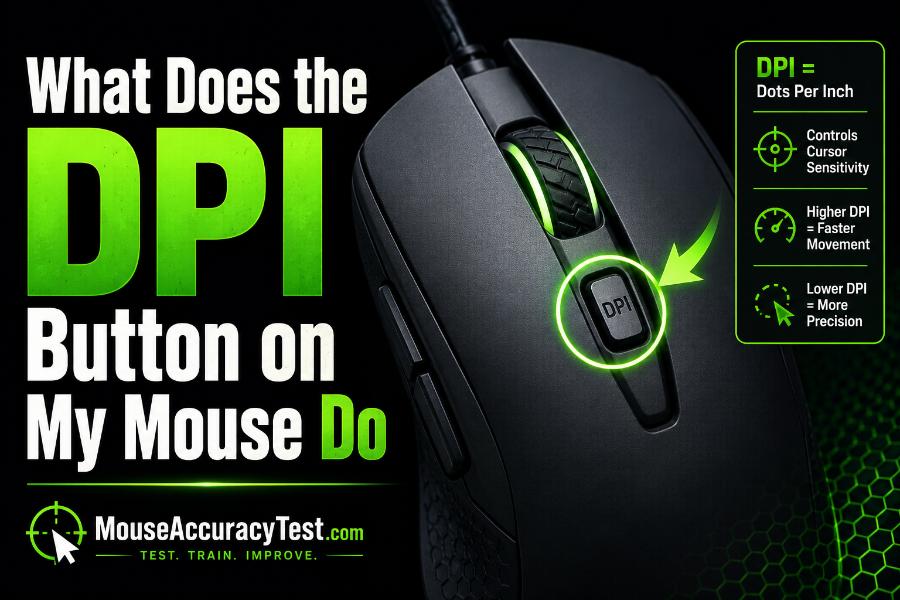
If you have wondered, “What does the DPI button on my mouse do?” the basic answer is that it changes the mouse sensor’s sensitivity setting. Pressing the button usually cycles through several DPI stages. A higher stage makes the pointer or game camera travel farther for the same physical movement. A lower stage makes movement slower and may provide more room for fine corrections.
The button can be useful for switching between fast desktop navigation, precise design work, close-range gaming, and long-range aiming. It can also be confusing when pressed accidentally because the mouse suddenly feels much faster or slower. This guide explains how the button works, how to identify each stage, and how to customize or disable it.
What DPI Means on a Mouse
DPI stands for dots per inch, although counts per inch is a more technically accurate description of mouse sensor output. The value represents how many movement counts the sensor reports when the mouse travels one physical inch. At 800 DPI, the device generally reports about 800 counts across that distance.
Those counts are then processed by the operating system or game. Pointer speed, acceleration, display scaling, and in-game sensitivity can multiply or modify the result. Therefore, DPI is not the only factor controlling how fast the pointer feels. It is the hardware layer that the DPI button typically changes.
A higher number is not automatically more accurate or better. It simply changes the relationship between hand movement and reported input. The best stage is the one that gives you useful speed without making small movements difficult to control.
How the DPI Button Works
Most DPI buttons cycle through a list stored in the mouse firmware, onboard memory, or software profile. Each press moves to the next stage. A common list might contain 400, 800, 1600, and 3200 DPI, but every model can use different values. When the final stage is reached, the next press may return to the first.
Some mice have two buttons labeled plus and minus, allowing you to move up or down the stage list. Others place the control on the underside to prevent accidental presses. A few models use a rocker, a side button, or a combined button function.
The button does not usually change screen resolution, improve graphics, or increase the physical speed of the mouse. It changes how much movement data is reported. The visible result is faster or slower pointer movement and, in games, faster or slower camera rotation when other sensitivity settings remain unchanged.
Why the Pointer Suddenly Becomes Fast or Slow
An accidental press is one of the most common reasons a mouse suddenly feels wrong. The change can happen while reaching for the scroll wheel, using a top button as a game bind, or cleaning the device. If several stages are active, one press may produce a noticeable jump.
Automatic profiles can create the same effect. The mouse software may load one DPI value on the desktop and another when a game or application opens. When the application closes, the original profile returns. This behavior is useful when configured intentionally, but it can feel random if you do not know profile switching is enabled.
A temporary precision button can also lower DPI only while held. Releasing it restores the original value. If the mouse feels slow only during a button hold, the control may be assigned as a sniper or DPI-shift function rather than a normal cycling button.
How to Know Which DPI Stage Is Active
Look for an LED near the button, scroll wheel, logo, or underside. The color may change with each stage. Manufacturer software may also display an on-screen notification such as 800 DPI or 1600 DPI. Some mice flash a pattern rather than using a fixed color.
The color values are model-specific. Check the manual, product support page, or official configuration app. Do not rely on a universal color chart because no industry standard requires one color to represent one DPI.
If there is no indicator, move the pointer and compare the speed after each press. For an exact or approximate value, open the software or run a calibrated DPI test with a ruler. Record the stage order so you can return to your preferred setting without guessing.
DPI Button vs. Pointer-Speed Settings
The DPI button changes the mouse’s hardware sensitivity stage. Windows pointer speed and macOS tracking speed change software processing after the input reaches the computer. Both can make the cursor faster or slower, but they act at different layers.
In a game that uses raw mouse input, operating-system pointer settings may have little or no effect on camera movement. The hardware DPI and the game’s sensitivity remain important. In a browser or office application, the operating system usually affects the final cursor movement.
For predictable setup, choose a hardware DPI first, set the operating-system speed to a known value, and then adjust application or game sensitivity. Changing all layers at once can make it difficult to identify the cause of an uncomfortable feel.
Common Types of DPI Controls
A cycle button moves through several permanent stages. An up/down pair lets you increase or decrease the value. A DPI-shift button temporarily changes sensitivity while held, then returns to the base setting. A profile button changes a complete stored profile that may include DPI, polling rate, button assignments, and lighting.
Some mice support separate X-axis and Y-axis DPI. This makes horizontal and vertical movement respond differently, although most users keep them linked. Advanced utilities may also offer multiple stages that can be tuned in small increments.
Laptop and office mice sometimes use a general speed button rather than clearly labeling it DPI. The function may still cycle through sensor presets. Bluetooth travel mice may prioritize battery life and provide fewer stages than a gaming mouse.
When the DPI Button Is Useful
On a high-resolution or multi-monitor desktop, a higher stage can reduce the amount of physical movement required to cross the screen. For detailed photo editing, drawing, or selecting small interface elements, a lower stage can provide more control. Some users switch between these tasks during the day.
In games, a base DPI combined with in-game sensitivity determines the effective turn speed. A temporary lower stage can help with a precise long-range shot, although many experienced players prefer one stable setting to avoid inconsistency. A higher temporary stage may help with rapid camera movement in certain vehicles or strategy-game map navigation.
The button is most useful when each stage has a clear purpose. Keeping many unused values often creates more confusion than flexibility. Two practical stages—or one fixed stage—are enough for many users.
When You Should Avoid Switching DPI
Frequent switching can make mouse movement difficult to predict, especially while building aiming consistency. If the same physical movement produces different results from one fight to the next, your corrections may become hesitant or exaggerated.
For competitive FPS games, many players select one hardware DPI and adjust the game’s sensitivity around it. They may disable the top button to prevent accidental changes. This is not a requirement, but it simplifies muscle-memory and troubleshooting.
Avoid using DPI switching as a reaction to every missed shot. Performance changes because of attention, posture, movement, weapon accuracy, and match pressure. Change the setting only when a repeated problem—such as running out of mouse-pad space or overshooting small targets—shows that the current effective sensitivity is unsuitable.
How to Customize the DPI Button
Install the official mouse utility and select the device. Open the DPI or Sensitivity page to edit the stage list. Remove values you never use, choose the preferred increments, and select a default stage. Then open the button-assignment page if you want to change what the physical button does.
You can assign the button to DPI up, DPI down, DPI cycle, temporary shift, another keyboard command, or no action, depending on the software. Save the configuration to the active profile and onboard memory when supported.
Test the button after closing the utility. If the setting disappears, it may be stored only in a software profile. Enable the utility at startup or transfer the profile to onboard memory. Keep a note of the final stages and indicator colors.
How to Disable the DPI Button
Disabling the button is helpful when accidental presses interrupt games or work. In the manufacturer’s app, go to button assignments, click the DPI control, and select Disable, Unassigned, or No Action. Some utilities require you to keep at least one active DPI stage, but the physical button can still be neutralized.
Another approach is to delete every stage except the preferred value. Even if the button remains assigned, cycling has no practical effect when there is only one available stage. Save the configuration to onboard memory if possible.
If the mouse has no software support, you may not be able to disable the button electronically. A physical cover is not generally recommended because it can interfere with other controls or damage the device. Instead, learn the preset order and place the mouse so the button is less likely to be pressed during normal use.
What to Do If the Button Does Not Work
Confirm that the button is actually assigned to DPI control. A previous profile may have remapped it. Restore default assignments in the software, create at least two DPI stages, and try again. Check whether the correct profile is active.
Reconnect the mouse, try a different USB port, recharge or replace the battery, and restart the utility. Update official firmware and software if the manufacturer provides an update. For wireless mice, place the receiver close enough to avoid an unstable connection.
If the button feels stuck, double-clicks, or changes settings without being pressed, the switch may be worn or contaminated. Clean around the button without introducing liquid into the mouse. Persistent hardware faults may require repair or replacement.
Does the DPI Button Affect Accuracy?
The button affects sensitivity, which can influence how easy accuracy feels. A very high setting can make tiny hand movements move the crosshair a large distance, while a lower setting can make fine corrections easier. However, the button itself does not change your skill or guarantee better sensor performance.
Modern sensors can perform well across a broad practical range. Shape, weight, grip comfort, pad friction, frame rate, latency, in-game settings, and practice also matter. The useful measure is whether you can stop on targets, track movement smoothly, and turn without running out of space.
Do not confuse maximum advertised DPI with effective accuracy. Extreme values may be available for flexibility or marketing, but most users do not need the maximum stage.
How Many DPI Stages Should You Keep?
Most users do not need every preset provided by the factory. A long list makes accidental changes harder to diagnose because several stages may feel similar. Keep one stable gaming stage and, when useful, one faster desktop stage or one temporary precision stage.
Choose values with a clear difference so you can recognize the active setting immediately. For example, two nearby stages may be unnecessary if they serve the same purpose. Fewer stages also make LED indicators easier to remember and reduce the chance of entering a match with the wrong sensitivity.
Frequently Asked Questions
Where is the DPI button located? It is commonly near the scroll wheel, behind the main buttons, on the side, or on the underside. The manual identifies the exact control.
What color means 800 DPI? There is no universal color. Check the model’s manual or software because each manufacturer can use a different mapping.
Can I remove extra DPI levels? Yes, many gaming-mouse utilities let you delete unused stages and keep only the values you need.
Why does the DPI change only in one game? An automatic application profile may be loading when that game starts. Review profile switching in the mouse software.
Is a sniper button the same as a DPI button? A sniper button is usually a temporary DPI shift that works only while held. A standard DPI button often cycles to a new stage that remains active.
Conclusion
The DPI button changes how many movement counts the mouse reports, which changes pointer or camera speed when other settings stay the same. It usually cycles through preset stages, uses indicator colors, or activates a temporary sensitivity shift.
Use the official software or manual to identify the stages. Remove values you do not need, save the preferred setting to onboard memory, and disable the button if accidental presses are a problem. Once you understand the active DPI and the software sensitivity layers around it, sudden speed changes become easy to diagnose.